
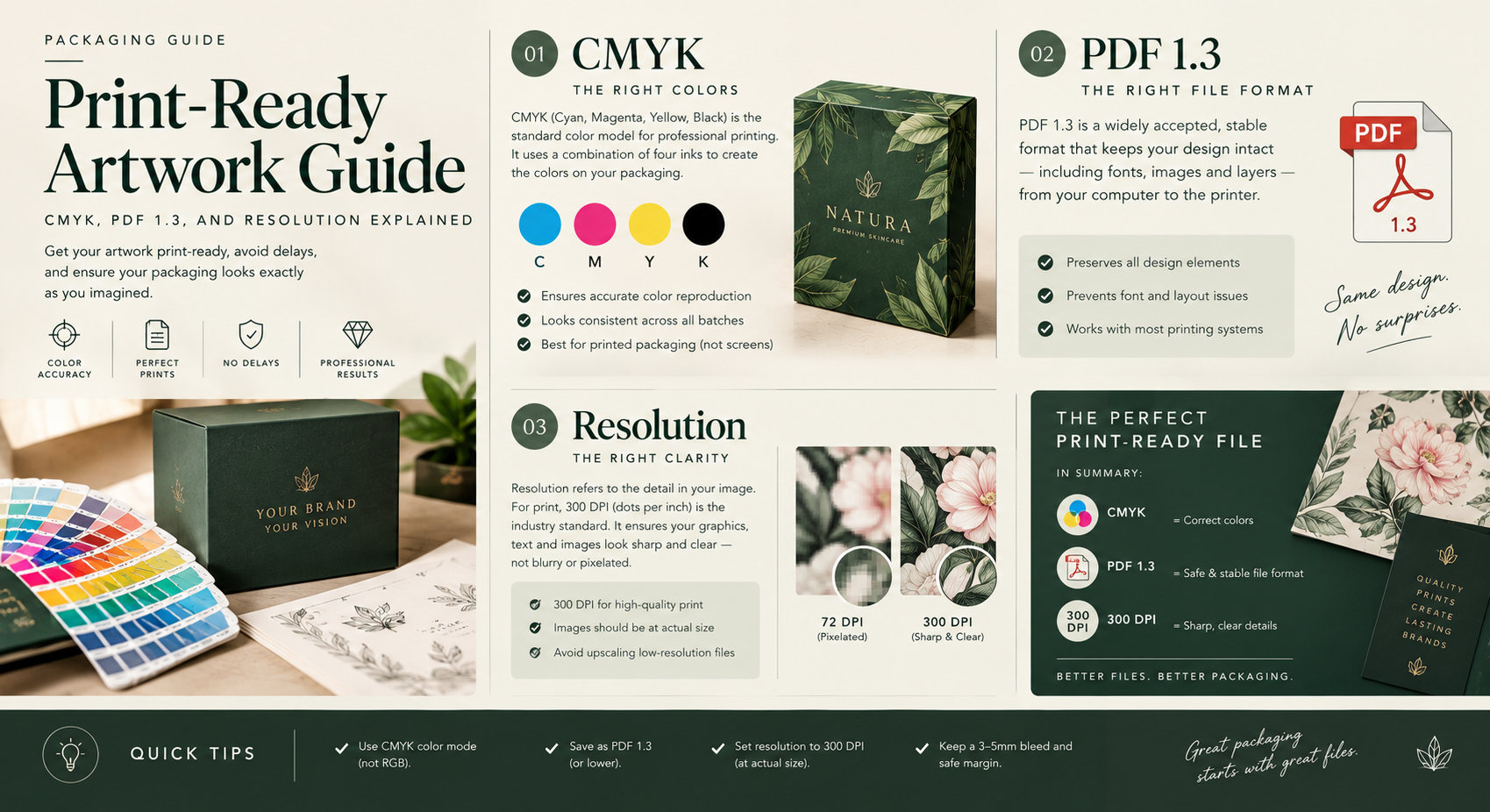
Print-Ready Artwork Guide: CMYK, PDF, and Resolution Explained
If you’ve designed a logo or graphic for your screen and then been told it’s “not print-ready,” you’re not alone — files that look perfect on a monitor often need real adjustments before they’re ready to go on a printing press. This guide explains the handful of technical requirements that actually matter, in plain language, so you know what to check before submitting artwork with your quote.
Why Screen-Ready and Print-Ready Aren’t the Same Thing
Screens display color using light (red, green, and blue light combined — RGB), while printing presses apply ink to a physical surface (cyan, magenta, yellow, and black ink combined — CMYK). These are fundamentally different processes, which is why a color that looks vibrant on your laptop can look duller or shifted once it’s printed — the color space itself is different, not just the device. Converting your file to CMYK before submitting it (or asking your designer to design in CMYK from the start) is the single most impactful thing you can do to avoid a color surprise at proofing stage.
The Four Things That Actually Matter
1. Color Mode: CMYK, not RGB. As explained above, submit files in CMYK color mode. If you’re not sure how to convert a file, most design software (Adobe Illustrator, Photoshop, Canva Pro) has a straightforward color mode conversion option — or simply mention it when you submit your quote, and we can flag if a file needs conversion before proofing.
2. Resolution: 300 DPI, not 72 DPI. Images designed for web use are typically 72 DPI (dots per inch) — fine for a screen, but they’ll look blurry or pixelated when printed at a larger physical size. Print files should be 300 DPI at the actual size they’ll be printed. A logo that looks sharp as a small web image can look noticeably soft once it’s blown up to cover the front panel of a box — check resolution at the actual print size, not just “does it look fine as a thumbnail.”
3. File Format: Vector for logos, high-res PDF or TIFF for final files. Logos and line-art graphics should ideally exist as vector files (AI, EPS, or SVG) rather than raster images (JPG, PNG) — vector files scale to any size without losing quality, which matters because your logo might appear small on a label and large on a box from the same brand. For final, ready-to-print submissions, a high-resolution PDF (ideally PDF/X-1a or similar print-standard format) or TIFF file is the safest format to submit.
4. Bleed and Safe Zone: Build in extra margin. “Bleed” is a small amount of extra artwork extending past the edge of where the final box or label will be cut, which accounts for minor shifts during the cutting process — without bleed, a slight misalignment can leave a thin white edge where the design was supposed to run to the border. “Safe zone” is the inverse: important text or logo elements should sit a small margin inside the cut line, so nothing critical risks being trimmed off. If you’re not designing the file yourself, just knowing these terms exist means you can ask your designer to confirm they’ve accounted for both.
What Happens If Your File Isn’t Print-Ready
Don’t let an imperfect file stop you from requesting a quote — this is genuinely common, and it’s one of the reasons free design support exists as part of the ordering process. Submit what you have (even a rough logo or a reference image), and any resolution, color mode, or format issues can be flagged and corrected before your order goes into production, not after.
Frequently Asked Questions
Do I need a designer to submit artwork, or can I do it myself?
Either works. If you have a logo or design file already, you can submit it directly. If you don’t have design experience or a finished file, that’s fine too — free design support is included, and the goal is to get you to a print-ready file regardless of where you’re starting from.
What if I only have a low-resolution logo file (like one saved from a website)?
Send what you have — a low-resolution file can sometimes be recreated or recovered from a vector source if one exists, and if not, we can flag it early so you know whether a redesign or a resolution workaround is the right path before production, not after.
Can Canva files be used for print?
Canva files can work, but the export settings matter — export as a high-resolution PDF with CMYK color mode selected if the option is available, rather than the default PNG or JPG export, which is typically optimized for web/screen use.
Ready to submit your artwork?
Get a free quote and upload what you have — we’ll flag any resolution or format issues before your order goes to production.
